
Email History
Go to Email Security > Email History to view emails that have been processed by Email Security.
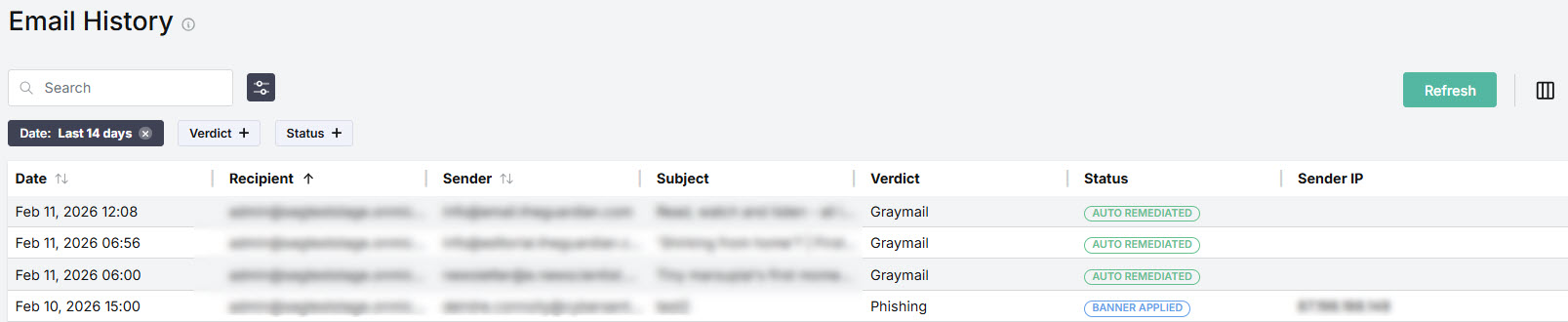
You can manage how the table is displayed as follows:
Use the search box
 to search terms in the Recipient, Sender, and Subject columns.
Select the filtering options
 icon to to show/hide the filter options, and then apply filters based on Date, Verdict, and Status. Select the term(s), and then select Apply.
Select Refresh to update the table with the latest email history. Note that selecting Refresh maintains your current view as it does not clear filters or search terms,
Select the column
 icon to manage how table columns are displayed. By default, all columns are visible and arranged in a specific order. You can change the display by doing the following:
Select or deselect the checkbox beside a column name to show or hide a column.
Use the reordering
 icon to move columns up and down the list. This changes the left-to-right display. An item at the top of the list, for example, means that it will be the first column on the left. Select Reset Order to restore the columns to their default positions.
Resize columns by hovering your cursor over the column boundary you want to adjust until it becomes a resize
 cursor. Drag the boundary until the column is the width you want.
Select the up/down
 arrows in the column headers to sort column content.
When you select an email in the list, an Email Summary slide-out appears that provides more information about the email. See Managing Email History for details.
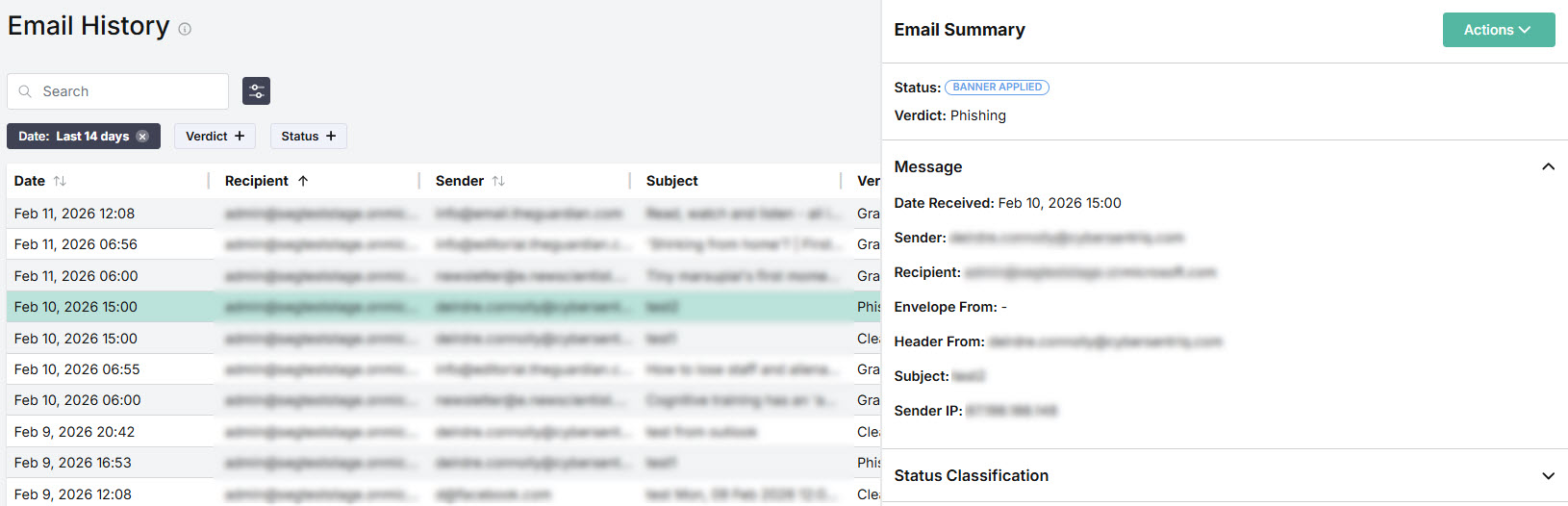
If an email is available for remediation, this can be done by selecting Actions > Remediate. See Taking Action on an Email for details.

Email History shows the following information for each email:
Date: Date and time the email was received.
Recipient: Recipient's email address.
Sender: The sender's email address.
Subject: Subject of the email.
Verdict: Classification of the email, for example, Clean or Phishing. See Managing Email History for details.
Status: Indicates the status of a message, such as Delivered or Banner Applied. See Managing Email History for details.
Sender IP: IP address of the sending server.