
Taking Action on an Incident
Taking action on an incident is also known as remediating an incident.
Locate the incident you wish to take action on, and select it to display the Incident Summary page. See Viewing an Incident for more information.
The message header displays details about the incident, including its current status and flag reason:
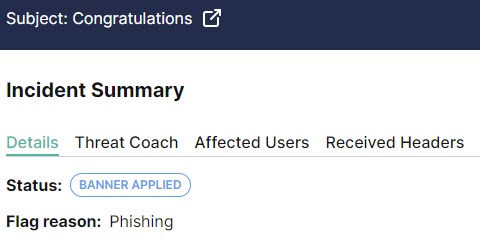
From the Actions menu, select an action to take on this incident.
Note
When you select one of the following actions for an email or domain, it is applied to all affected users. Select the Affected Users tab to see a list of all users that received the email.
Remediate: This action removes the email from all affected inboxes.
Mark as Safe: This action adds a green banner to this email marking it as safe. The email is restored to all affected inboxes.
Exempt Sender: This action adds the sender's email address to the Exemptions list. You'll be prompted to add the mail flow checks you want to skip for this address. See Exemptions for further details.
Exempt Domain: This action adds the sender's domain to the Exemptions list. You'll be prompted to add the mail flow checks you want to skip for this address. See Exemptions for further details.
Status | Description | Available Actions |
|---|---|---|
 | An email has been flagged by a user as phishing or clean using the TitanHQ for Outlook add-in. This incident needs Admin attention and review. NoteIf the email has been sent to only one recipient and has been reported as phishing, then it is automatically remediated to the junk folder. | Remediate Mark as Safe Allow Sender Allow Domain |
 | Emails can be remediated in the following ways:
This email has been moved to the Junk folder for all recipients. | Mark as Safe Allow Sender Allow Domain |
 | Email Security has flagged this email as suspicious and applied a warning banner before delivering it to a user's Inbox. | Remediate Mark as Safe Allow Sender Allow Domain |
 | Administrator has reviewed this email and determined it is safe. Once marked as safe, the email is then delivered to all recipients with a banner marking it as safe. | Remediate Allow Sender Allow Domain |
 | Auto remediation has been enabled meaning that this email has automatically been moved to the Junk folder for all recipients. | Allow Sender Mark as Safe |