Create a Shared Mailbox
In order to send copies of reported mails from your Outlook client to SpamTitan, you'll first need to set up a dedicated mailbox to receive the mails.
Log in to Microsoft 365 admin center and in the left navigation menu, select Show All > Exchange.
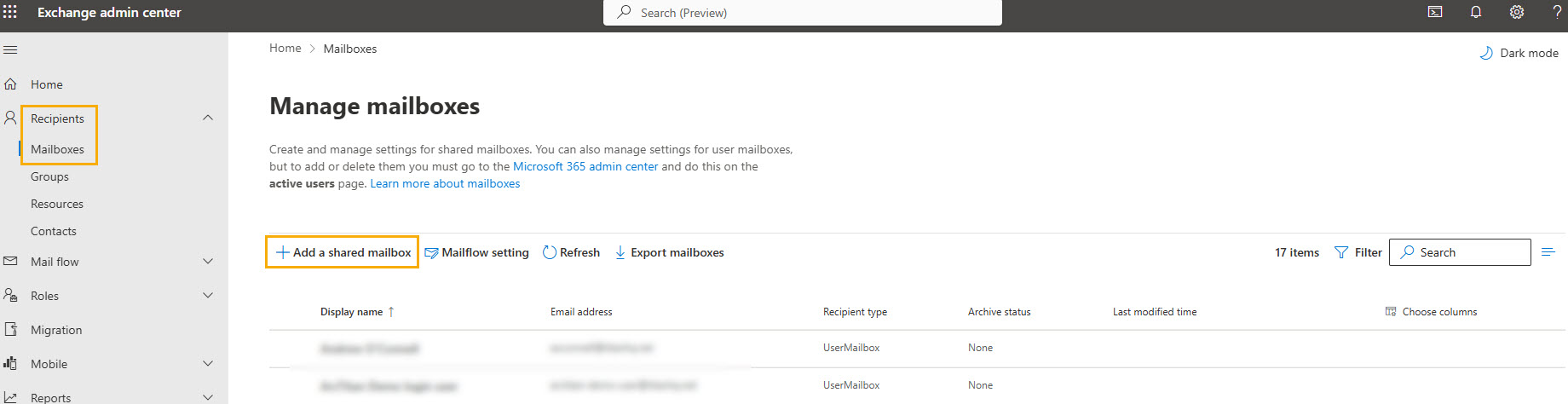
In the Exchange admin center tab that opens, go to the left navigation panel, and select Recipients > Mailboxes. Select Add a shared mailbox.
In the pop-up window, complete the following fields:
Display Name: Enter a name for the shared mailbox.
Email address: Enter the prefix for the email address, which is report-email-cybersentriq. Then select the domain from the Select Domain dropdown menu.
Alias: This field is optional and can be left empty.
Select Create.
Next, create an Exchange Connector.