Create an Exchange Connector
After you've created a shared mailbox, you'll need to create an Exchange Connector to forward copies of reported mails to a specified SpamTitan server.
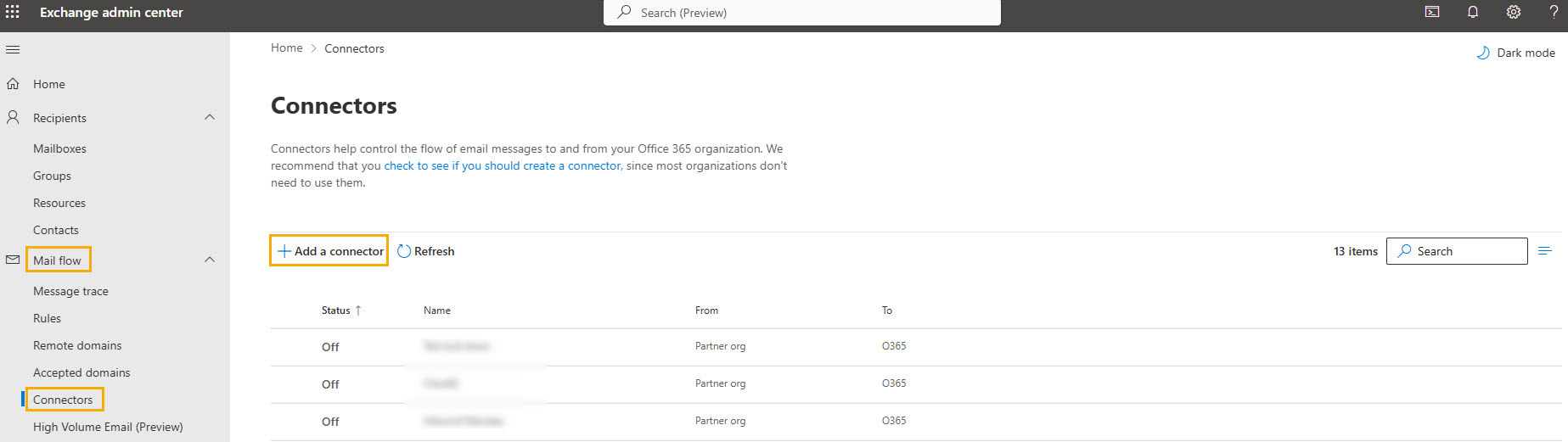
In Exchange admin center, go to the left navigation menu, and select Mailflow > Connectors. Select Add a connector.
In the New connector window, select Office 365 under Connection from. Select Your organization's email server under Connection to.
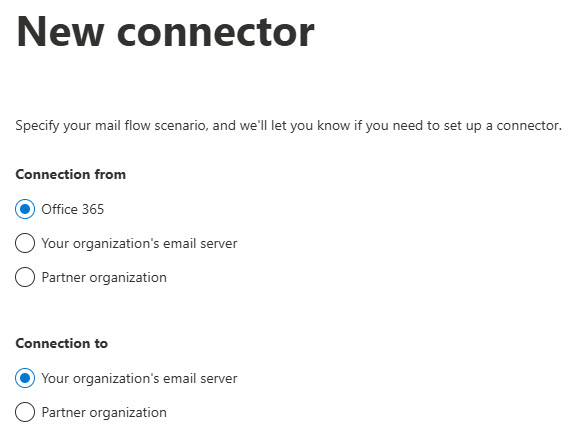
Select Next.
In the Connector name window, enter the name for your connector, for example, Reported Email Redirect. Add an optional description.
Under What do you want to do after connector is saved?, select Turn it on.
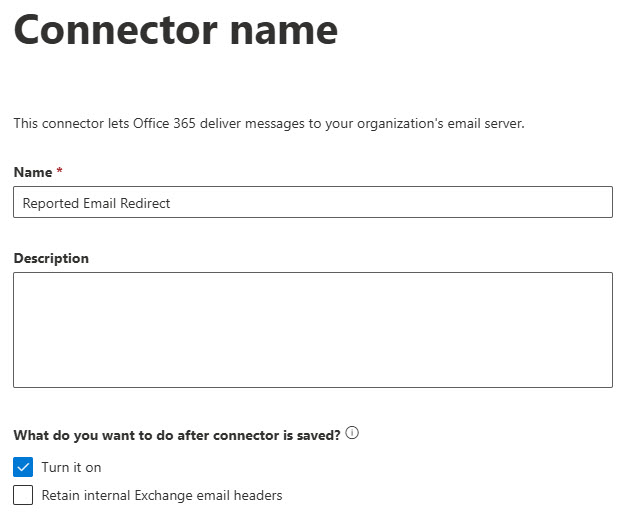
Select Next.
In the Use of connector window, select Only when I have a transport rule set up that redirects messages to this connector.
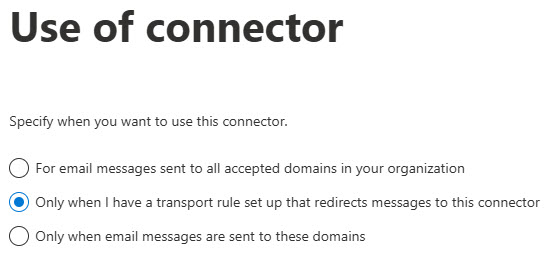
Select Next.
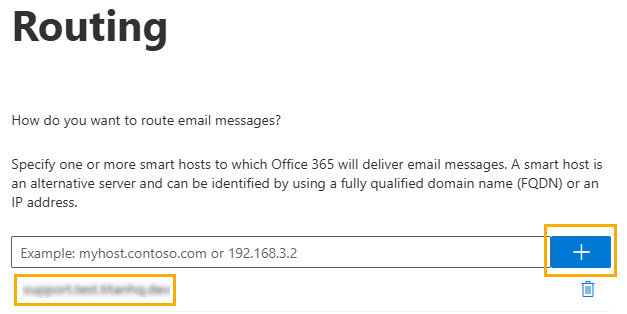
For Routing, enter the MX FQDN for the SpamTitan service you are using. This is usually one of the MX records for your email domain, for example, eu1-smtp-mx1.titanhq.com. Select +.
Select Next.
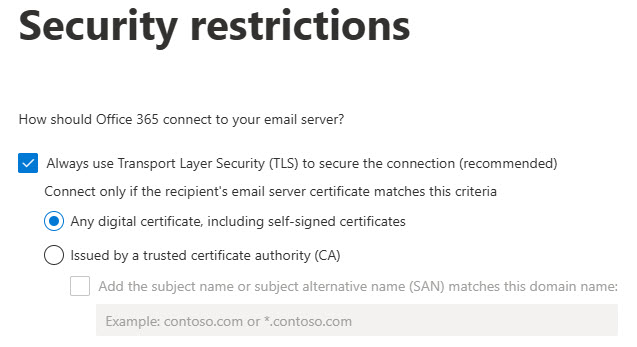
In the Security restrictions window, use Always use Transport Layer Security (TLS) to secure the connection (recommended), which is selected by default. Select Any digital certificate, including self-signed certificates.
Select Next.
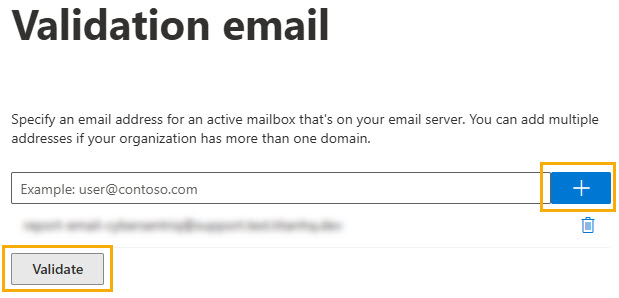
In the Validation email window, enter an email address for an active mailbox on your email server; for example, report-email-cybersentriq@ yourdomain.com and select +. Select Validate.
Select Next.
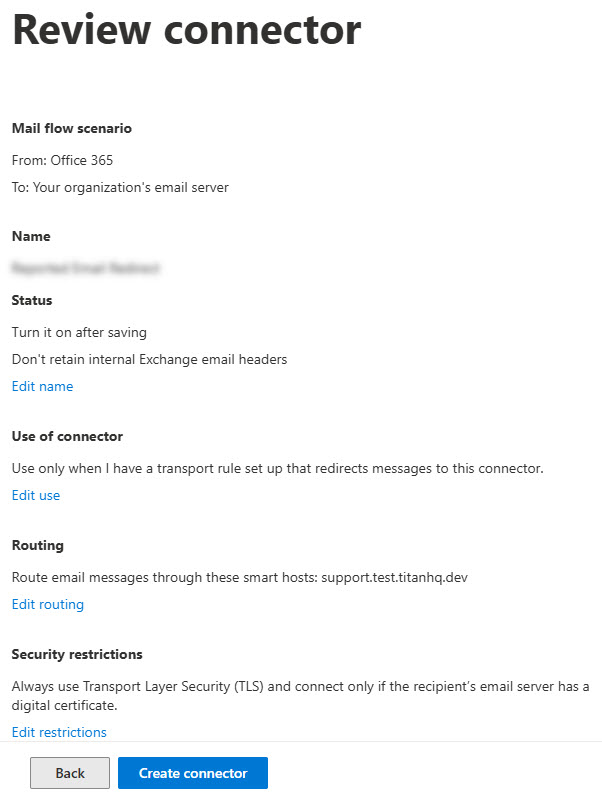
Review the connector information, and select Create Connector.
Select Done.
Next, create an Exchange Rule.