Configure Microsoft Defender
Follow the steps below to allow Exchange to send copies of reported mails to a shared mailbox.
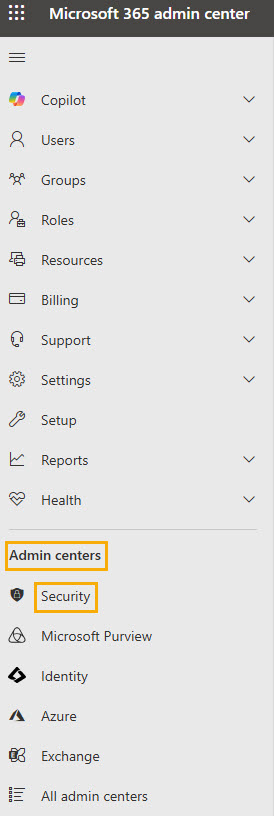
Go to Microsoft 365 admin center and in the left navigation menu, select Admin centers > Security.
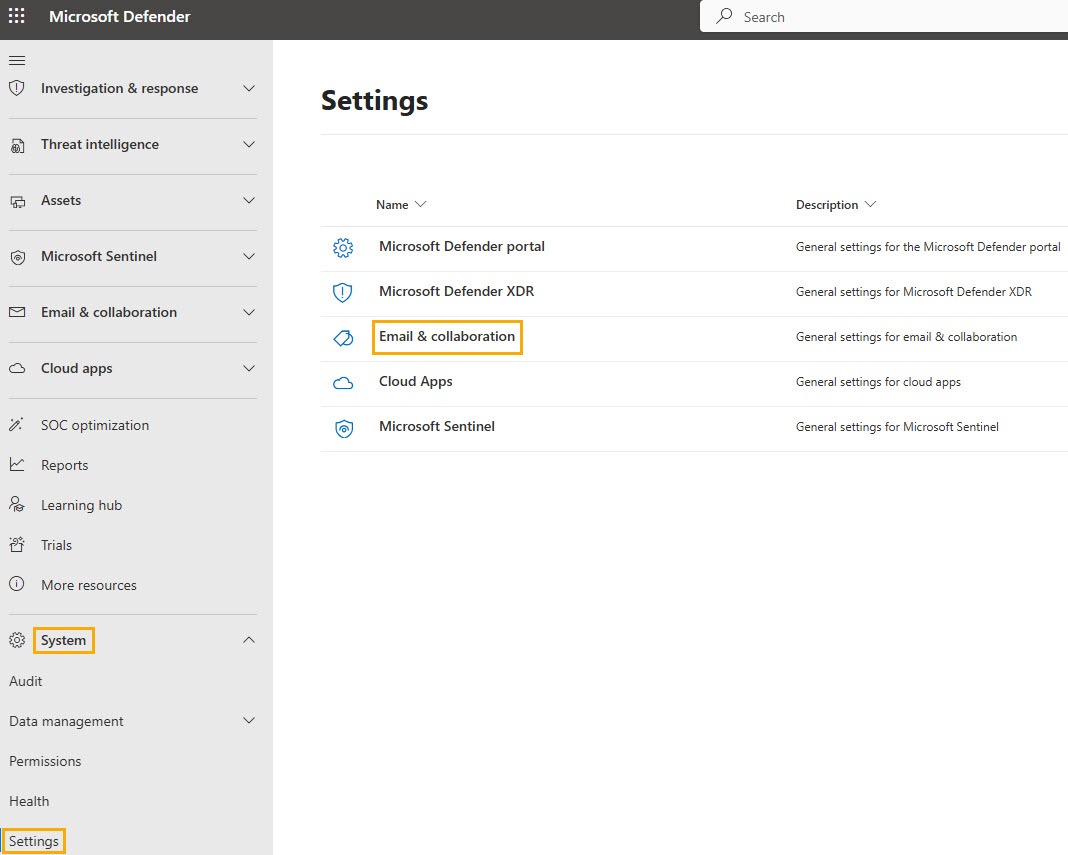
Select System > Settings, and then Email & collaboration.
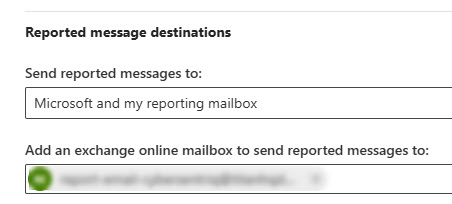
In the left panel, select User reported settings, and then scroll down to Reported message destinations. In the Add an exchange online mailbox to send reported message to, enter the shared mailbox you created, which is report-email-cybersentriq.
Select Save.
Now when you use your Outlook client to report suspicious mails, copies of the reported mails will also be sent to your SpamTitan server for analysis.