Create an Exchange Rule
This section explains how to set up an Exchange Rule that will identify the reported mails and send them to the Exchange Connector.
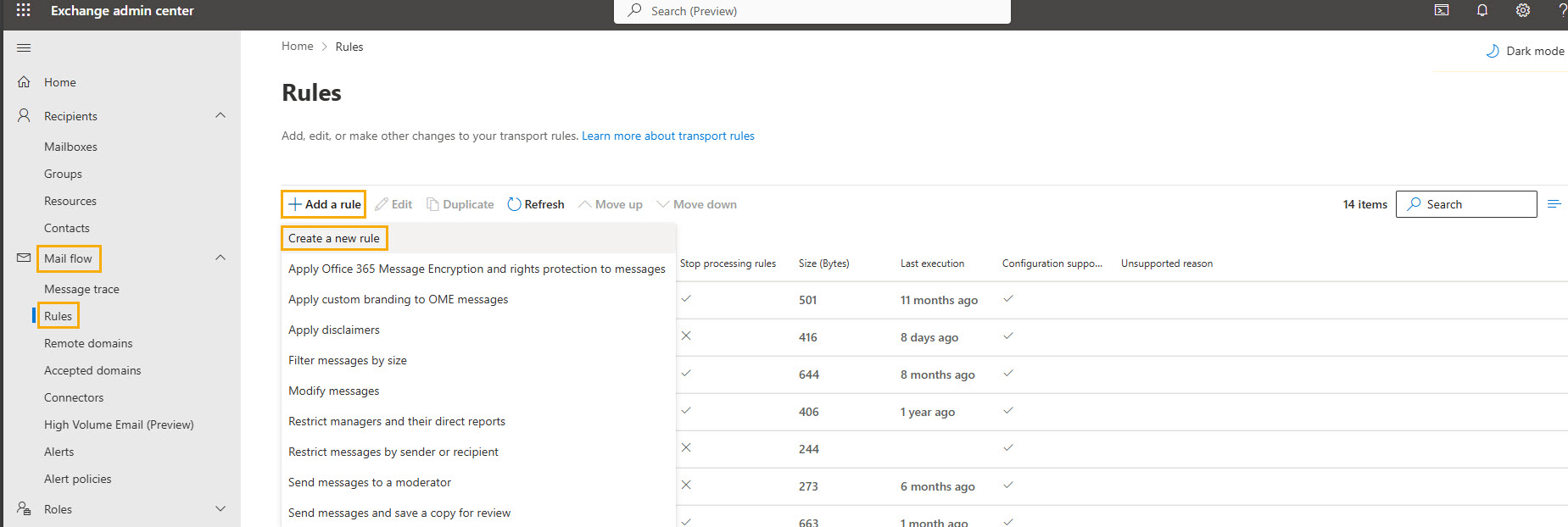
Go to Exchange admin center and in the left navigation menu, select Mailflow > Rules. Then select Add a rule > Create a new rule.
In the Set rule conditions window, complete the following fields:
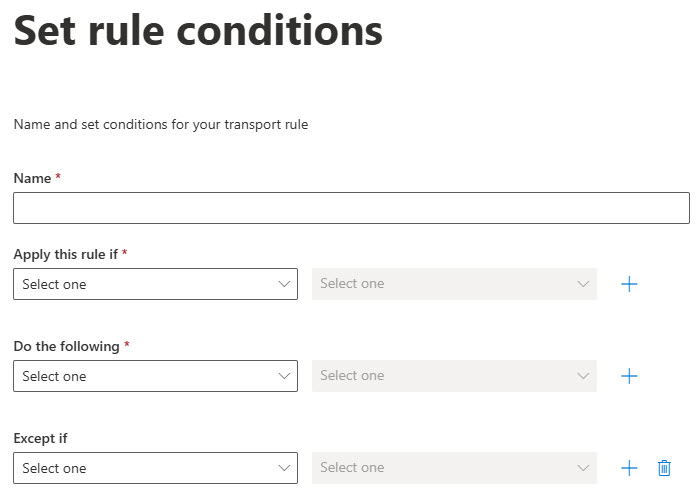
Name: Enter the name for your rule; for example, Reported Email Redirect.
Apply this rule if: From this dropdown menu, select The recipient. In the Select One dropdown menu beside it, select is this person. In the pop-up window, search for the name of the shared mailbox you created, which is report-email-cybersentriq, and select Save.
Do the following: From this dropdown menu, select Redirect the message to. In the Select One dropdown menu beside it, select the following connector. In the pop-up window, select the connector you created in Create an Exchange Connector, and select Save.
Except if: Leave this section empty.
Select Next.
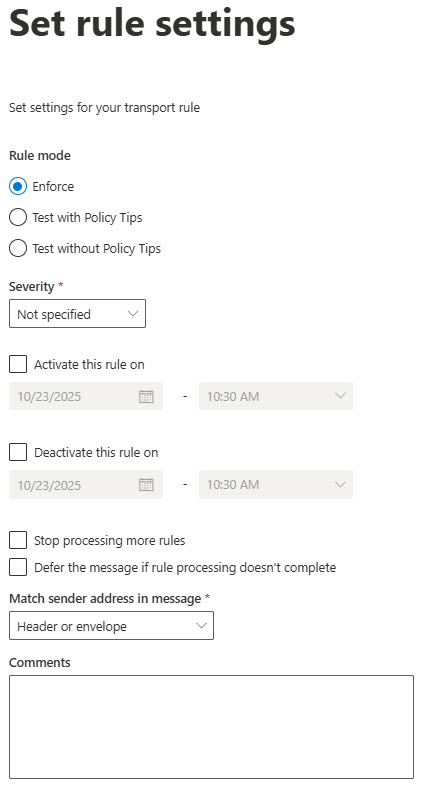
In the Set rule settings window, use the default Rule mode option of Enforce. From the Match sender address in message dropdown menu, select Header or envelope.
Select Next.
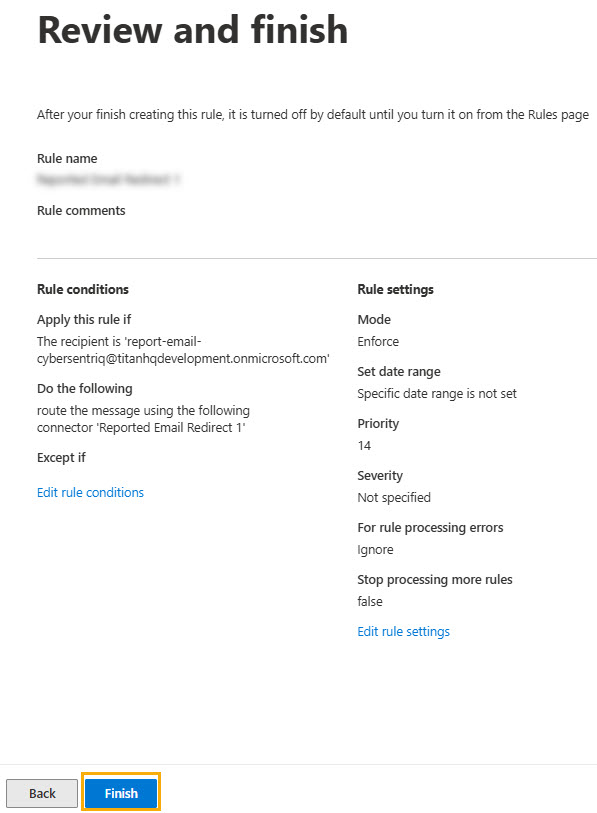
Review the information you've entered, and select Finish. And when rule is created successfully, select Done.
Now that you've created the rule, you'll need to enable it.
Go to the Rules list, and locate the new rule at the bottom of the list. Click on the rule name, and n the pop-up window, select the Enable or disable rule toggle. This will change the status to Enabled. Close the pop-up window.
Next, you'll need to configure Microsoft Defender.