Add Customers
Go to Overview and from the Actions dropdown menu, select Add Customer.
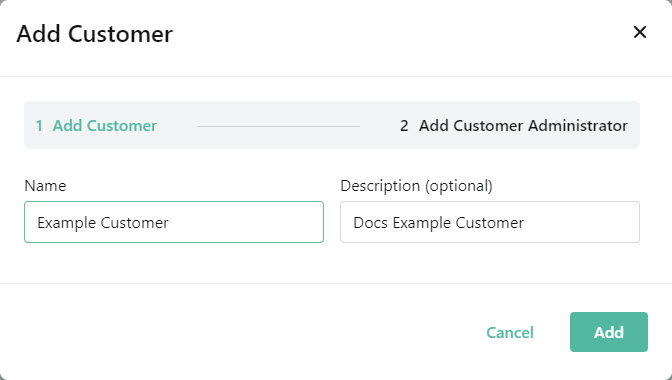
First, add the customer business name details and select Add.
Next, add the Customer Administrator details:
Tip
Additional administrators can be added at the customer level from Settings > Administrators.
First Name: Enter the first name of this administrator.
Last Name: Enter the last name of this administrator.
Email: Enter an email address for this administrator.
Link Lock Admin: Select YES to allow this administrator to enable and manage Link Lock. See Link Lock Admin.
Note
Link Lock is an enhancement to SpamTitan and is available after the purchase of a SpamTitan Plus license.
Password: Enter a password for this administrator.
Confirm Password: Confirm the password.
Select Add to save this customer. You now need to complete the steps in SpamTitan Customer Setup