
Taking Action on an Email
Locate the email you wish to take action on, and select it to display the Email Summary page. In the example below, an email with an Action Needed status has been selected. The email summary displays details about the email, including its current status and verdict.
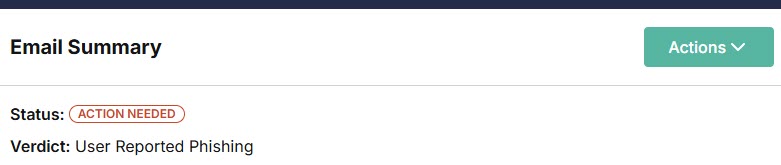
From the Actions menu, select an action to take on this email. Depending on its status, different options are available.
Remediate: This action removes the email from all affected inboxes. If the email was sent to multiple recipients, you'll be prompted with a pop-up window to confirm your decision to remediate the email. Select Remediate for All.
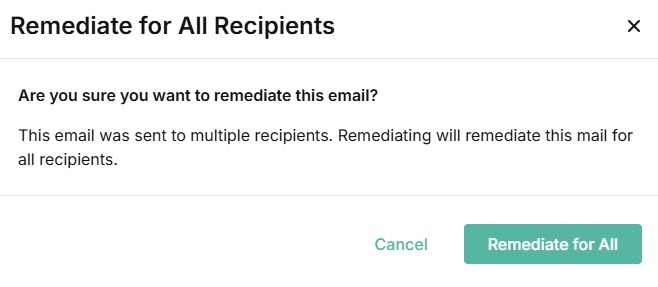
If the email was sent to one recipient, the email will be remediated. You won't receive a pop-up to confirm your decision.
Mark as Safe: This action restores the email to all affected inboxes and adds a banner marking it as safe.
Exempt Sender: This action adds the sender's email address to the Exemptions list. You'll be prompted to add the mail flow checks you want to skip for this address. See Exemptions for further details.
Exempt Domain: This action adds the sender's domain to the Exemptions list. You'll be prompted to add the mail flow checks you want to skip for this address. See Exemptions for further details.