
Deploy the Outlook add-in for Email Security
Follow the steps below to deploy the Outlook add-in. See Microsoft's knowledge base for more information: Deploy Office Add-ins in the Microsoft 365 admin center | Microsoft Learn
In the Microsoft 365 admin center, go to Settings → Integrated apps.
Go to Add-ins → Deploy Add-in.
In the Deploy a new add-in wizard, select Upload custom apps.
On the TitanHQ Platform, copy the Outlook add-in link provided under Connections → Security enhancements → Install the Outlook add-in in the right sidebar. The link will be in the form
https://protect.titanhq.com/manifest.xml.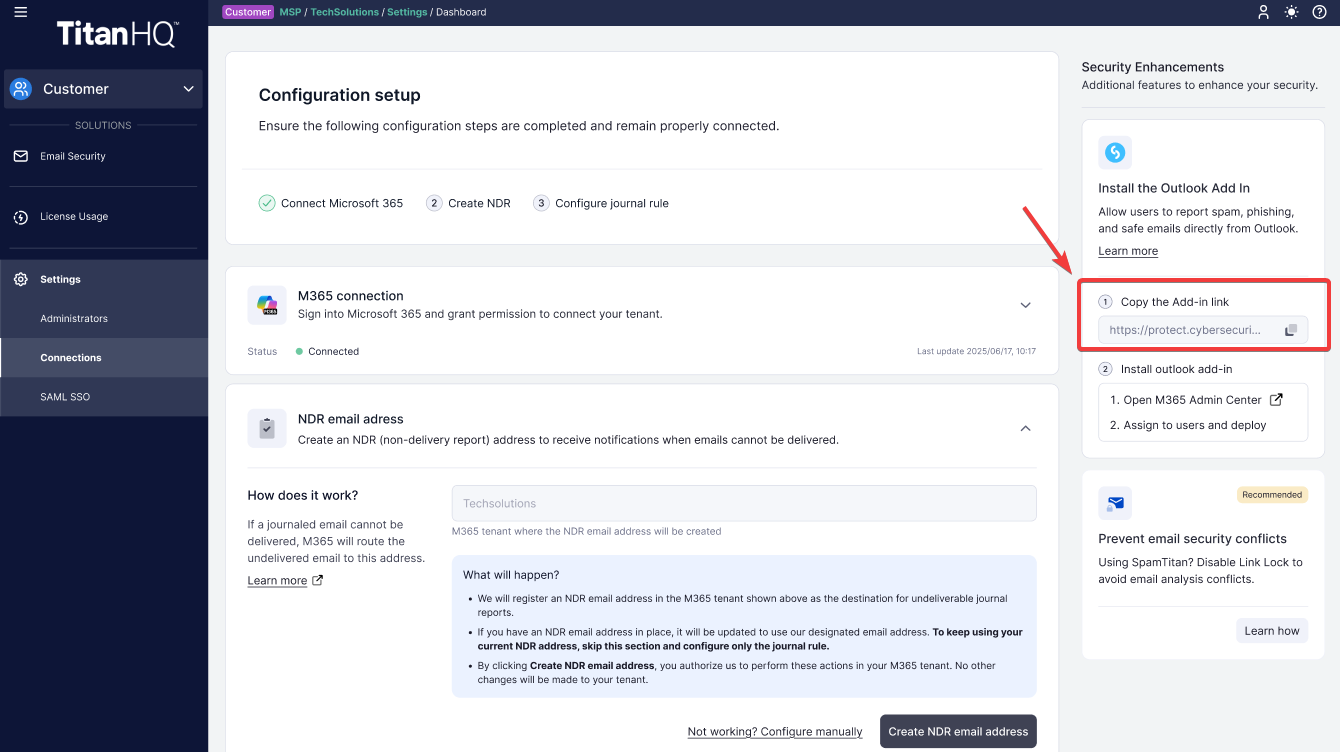
Back in the admin center, under Choose how to upload app, select Provide link to manifest file and enter the Platform link. Click Upload.
Under Assign users, specify the users of this add-in. It's best practice to deploy to a single user first, to test the functionality.
Click Deploy. Deployment time varies depending on your environment.
Once the deployment has completed and you've confirmed the add-in's functionality, click Change who has access to add-in to deploy to more users. The add-in will be available in the Outlook desktop client, web application, and mobile app.