Viewing Exemptions
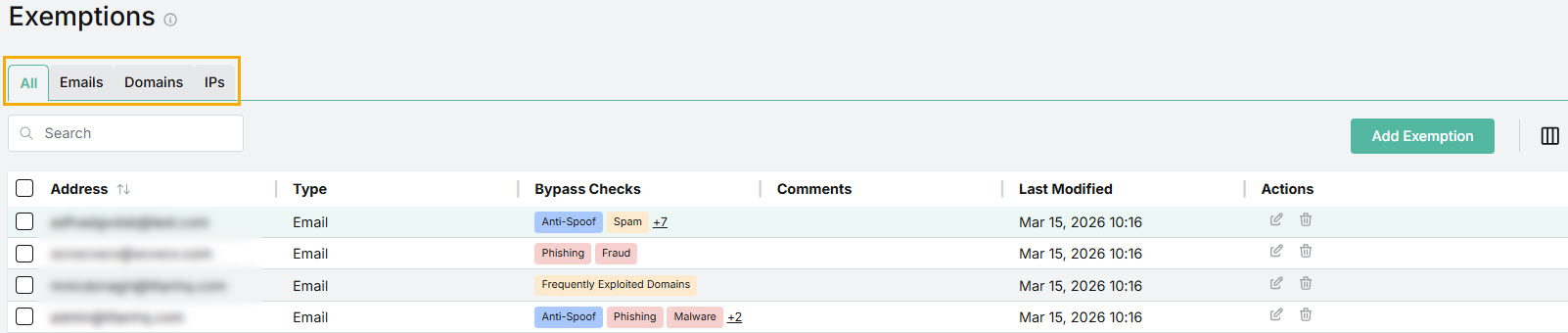
Go to Email Security > Configuration > Exemptions to view and manage Exemptions.
In the All tab, which appears by default, you'll see the complete list of exemptions that exist for specific email addresses, domains, and IPs. To see Exemptions based on each type, select the relevant tab.
Use the search
 box to search the list.
Select the column
 icon to manage how table columns are displayed. By default, columns are arranged in a specific order. You can change the display by doing the following:
Select or deselect the checkbox beside a column name to show or hide a column. Note that the Created Date and Modified By columns are not visible by default.
Use the reordering
 icon to move columns up and down the list. This changes the left-to-right display. An item at the top of the list, for example, means that it will be the first column on the left. Select Reset Order to restore the columns to their default positions.
Resize columns by hovering your cursor over the column boundary you want to adjust until it becomes a resize
 cursor. Drag the boundary until the column is the width you want.
The following fields are available:
Address: This is the email address, domain, or IP address for which the exemption was created.
Type: Indicates if it is an email address, domain, or IP address.
Bypass Checks: The security checks that were selected to be bypassed, to prevent an email from being flagged or auto-remediated.
Comments: Optional description that was entered when the Exemption was added.
Last Modified: Date that the Exemption entry was last edited. If it has been edited, then the date automatically updates.
Created Date: Date that the Exemption was created. Note that this column is not visible by default; select the column
icon to enable it.Modified By: Email address of the person who last modified the Exemption. Note that this column is not visible by default; select the column
icon to enable it.Actions: From the Actions column, you can edit or delete the email address or domain.
Note
Exemptions added on the MSP level cannot be edited or deleted on the customer level.
Select the edit
 icon beside the Exemption you want to edit. You can edit the Address, Bypass Checks, and Comments as described above.
Select the delete
 icon beside the Exemption you want to delete. Select Delete to confirm.