Suspend/Resume Customers
MSP admins can suspend a customer account from the Actions menu. This can also be reversed by resuming the account.
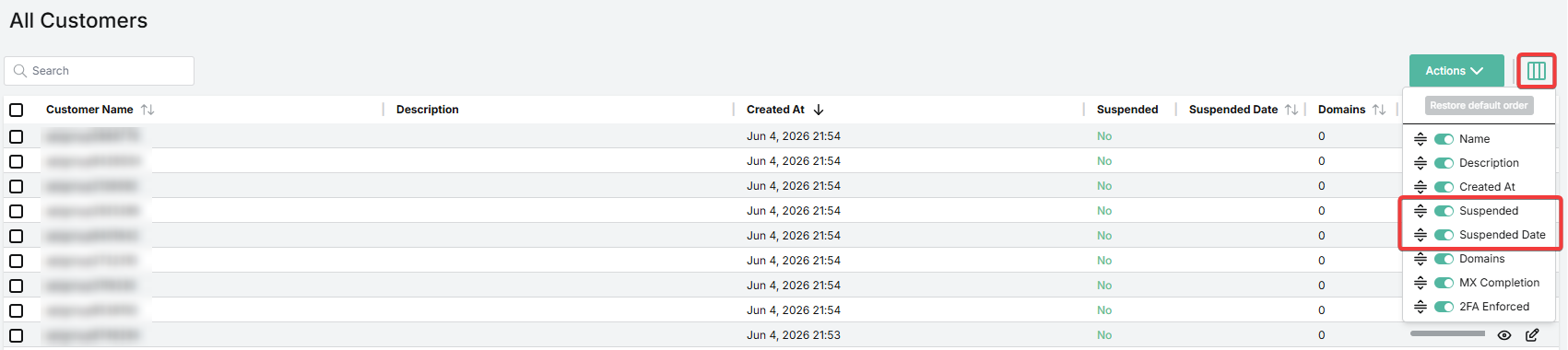
Enable the Suspended and Suspended Date columns in the All Customers table to see information about account suspensions at a glance.
How to suspend an account
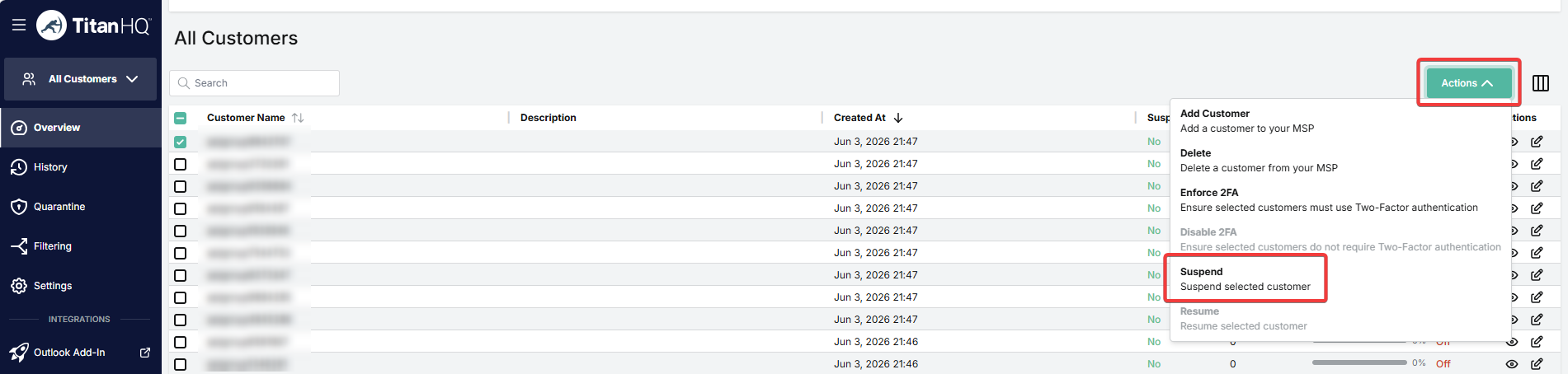
To suspend a customer account, select the customer in the All Customers table. Go to Actions → Suspend.
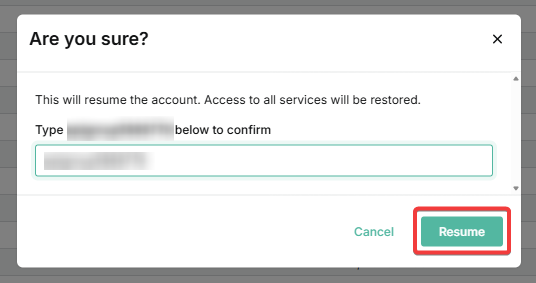
You will need to enter the customer name to confirm that you want to proceed. Then click Suspend.
 |
When an account is suspended, the following happens:
A suspended icon (🚫) appears to the left of the customer name in the All Customers table.
The Suspended column (if enabled) shows "Yes" for this customer.

The date and time of suspension appears in the Suspended Date column (if enabled).
An "Account suspended" banner is shown whenever an admin or sub-admin for the account logs in. Read-only access is permitted, but no actions can be performed.

Spam and virus filtering is disabled for all domains under the account.
Link Lock is disabled.
Quarantine reports and scheduled reports for the account are not sent.
How to resume an account
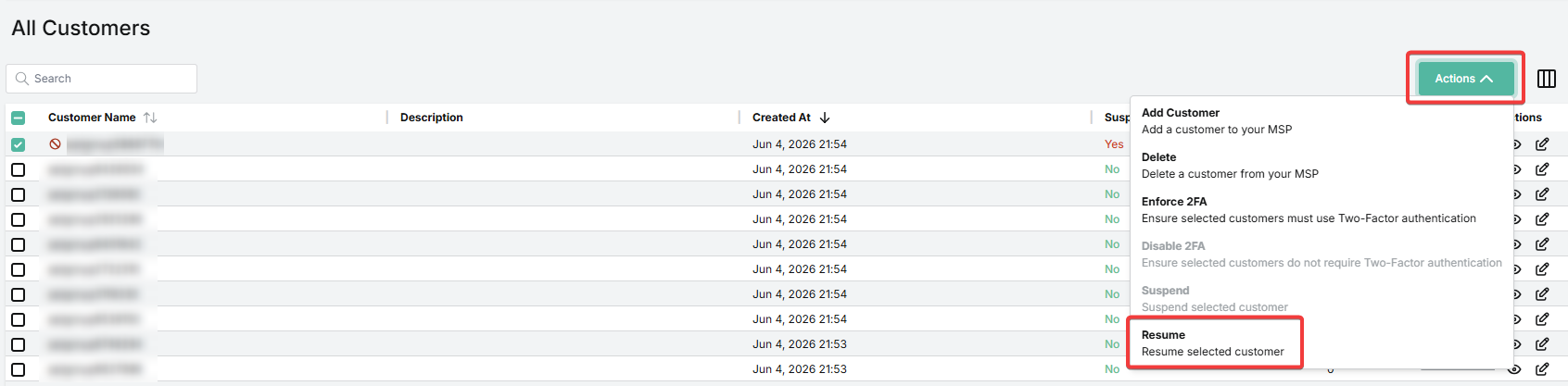
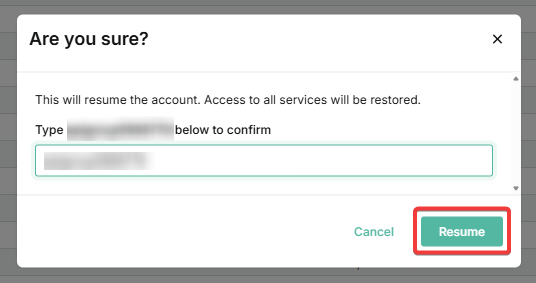
To resume a customer account, select the customer in the All Customers table. Go to Actions → Resume.
You will need to enter the customer name to confirm that you want to proceed. Then click Resume.
 |
When an account is resumed, the following happens:
The Suspended column (if enabled) shows "No" for this customer.

The "Account suspended" banner is no longer shown. All permitted actions can be performed by the user.
Spam and virus filtering is re-enabled for all domains under the account.
Link Lock is re-enabled.
Quarantine reports and scheduled reports for the account resume.
Important
A suspended admin cannot self-resume. Only a parent admin can resume a suspended account.