
Add a journal rule (Email Security only)
A journal rule allows a copy of every email sent or received in your organization to be sent to a journaling mailbox, from where it can be analyzed for spam, phishing and other threats. For more information, see this article: Journaling in Exchange Online | Microsoft Learn.
Note that the journal rule can only be created once an NDR email address has been configured.
Under Journal rule, verify the tenant where the journal rule will be created. Then click Generate rule.
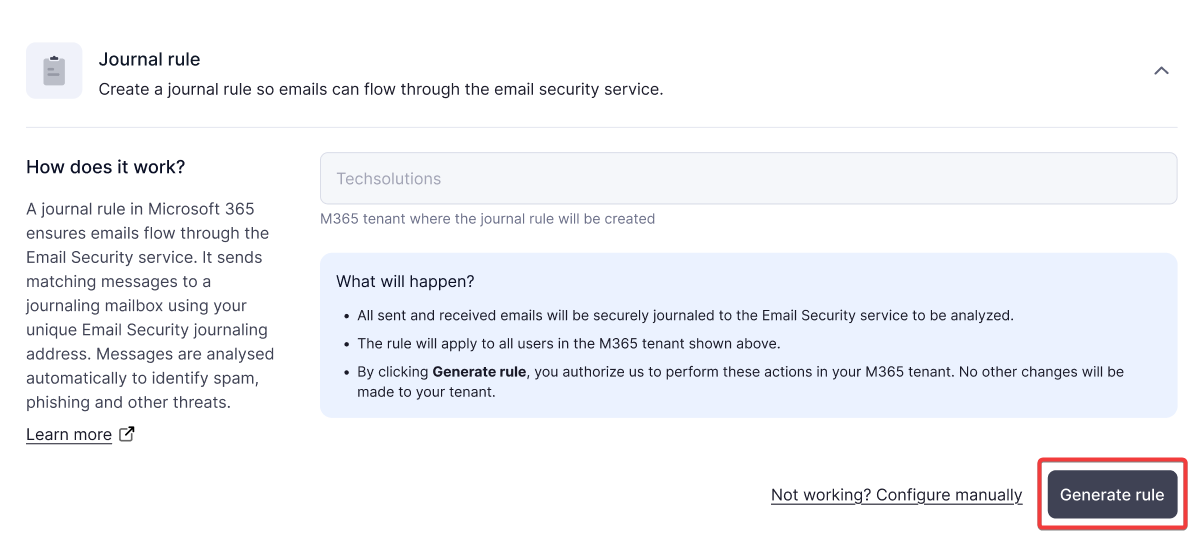 |
Once the journal rule has been created, you will see a success notification and the Status will change to Active.

If rule generation fails, you can create a rule manually. In this case, we cannot automatically validate your setup, but you can test your configuration in the Microsoft Purview compliance portal.
Click on Not working? Configure manually.
Copy the provided journal email address.
In the Microsoft Purview compliance portal, navigate to Solutions → Data lifecycle management → Exchange (legacy) → Journal rules, then select + New rule.
In the field Send journal report to, paste the copied journal email address.
In the field Journal Rule Name, enter a name for this rule, for example "Email Security".
Apply the rule to everyone and all messages. If you need help, see this article: Manage journaling in Exchange Online | Microsoft Learn.
Click Next and then Submit.
Click Confirm and then Test Configuration.
If you are still unable to create the journal rule, please contact our support team.